Cameras and add-ons
Stacking Add-Ons, One Click at a Time: Geotab Add-On Installation
Every add-on plugs into the tracker's expansion port and chains to the next, one install for the whole stack.
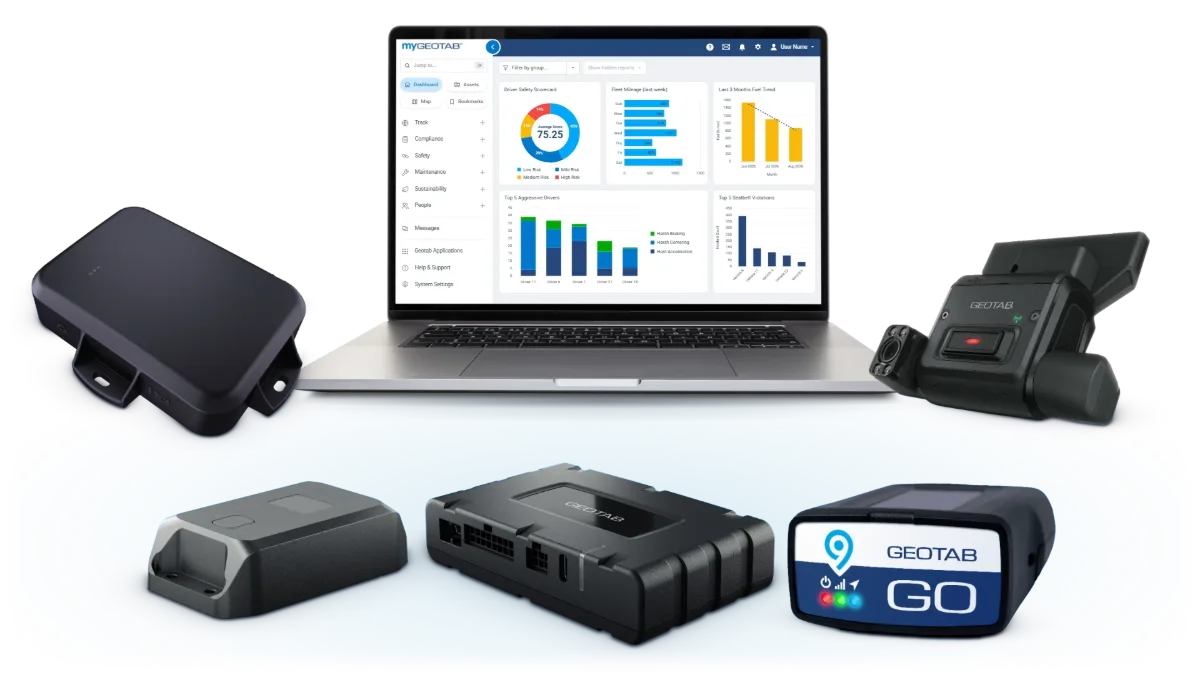
Cameras and add-ons
Every add-on plugs into the tracker's expansion port and chains to the next, one install for the whole stack.
Geotab add-on size and fit
Each add-on clicks into the expansion port, a small socket on the side of the GO9 or the port side of the GO10.
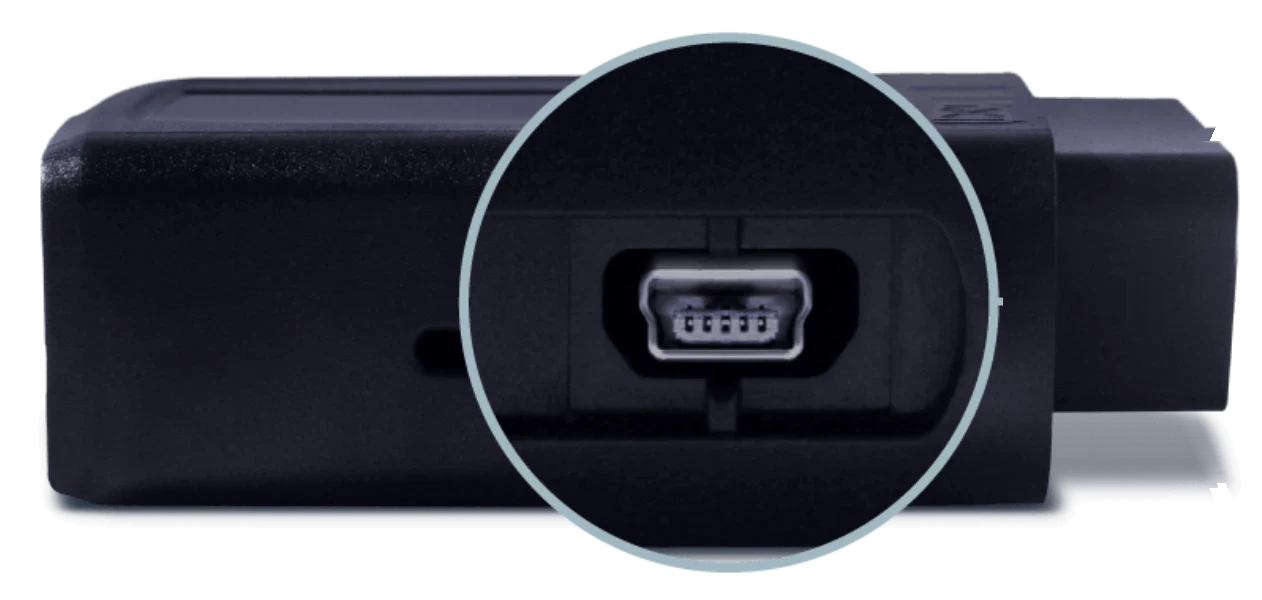
Unplug the tracker, click the add-on in, then plug the tracker back in.
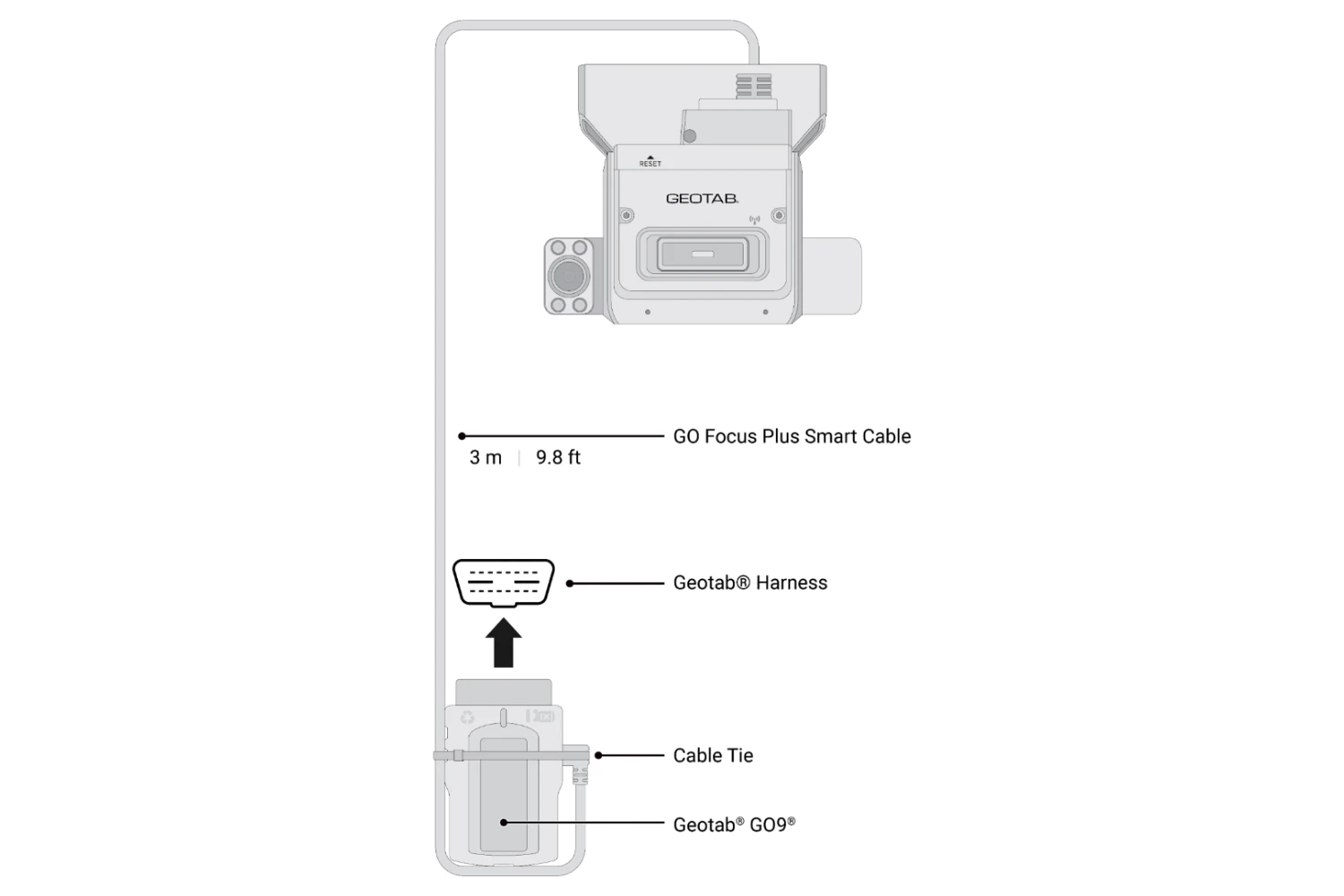
A GO Focus camera always sits at the end of the chain.
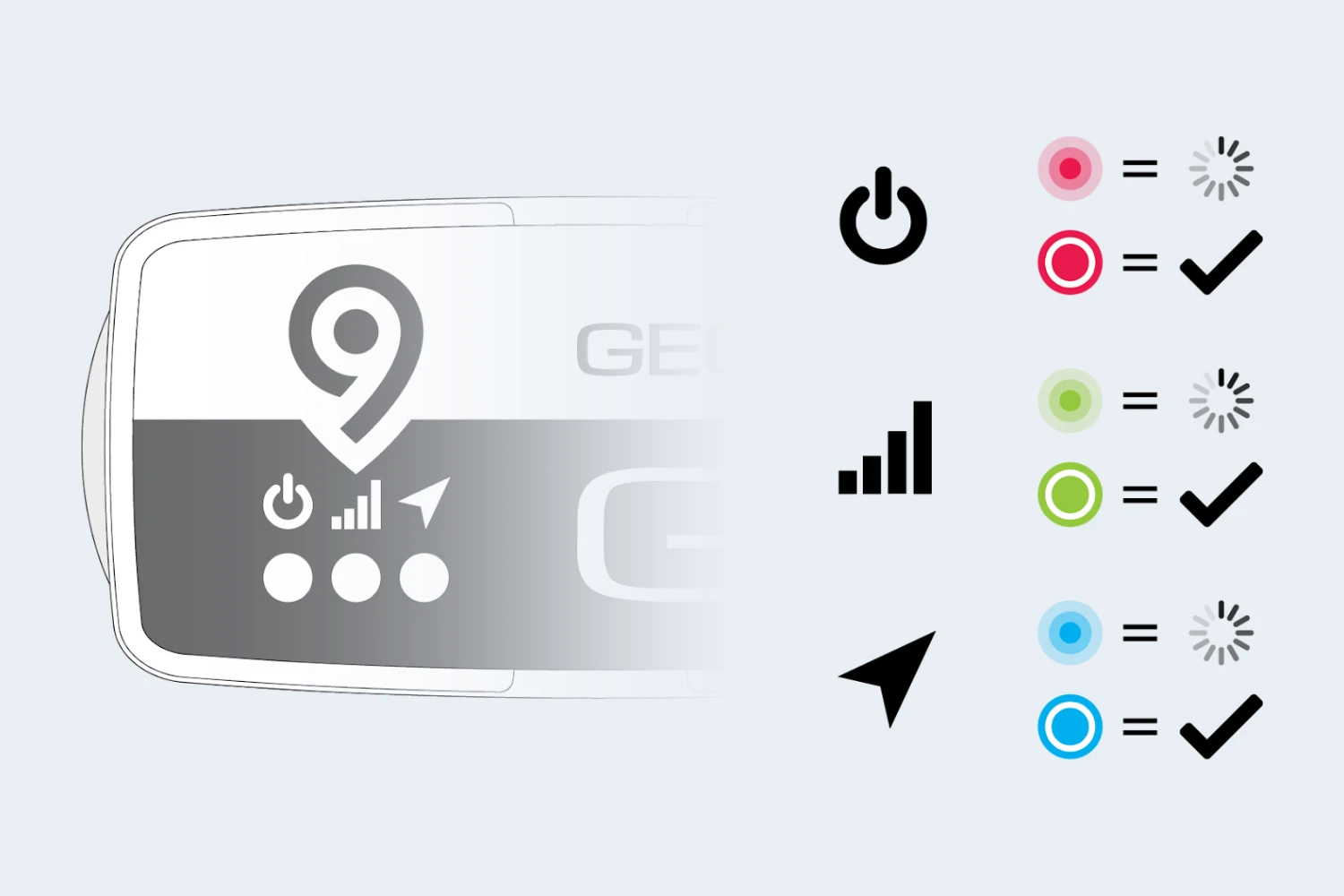
Tap a driver ID card and the reader blinks green while the tracker beeps once.
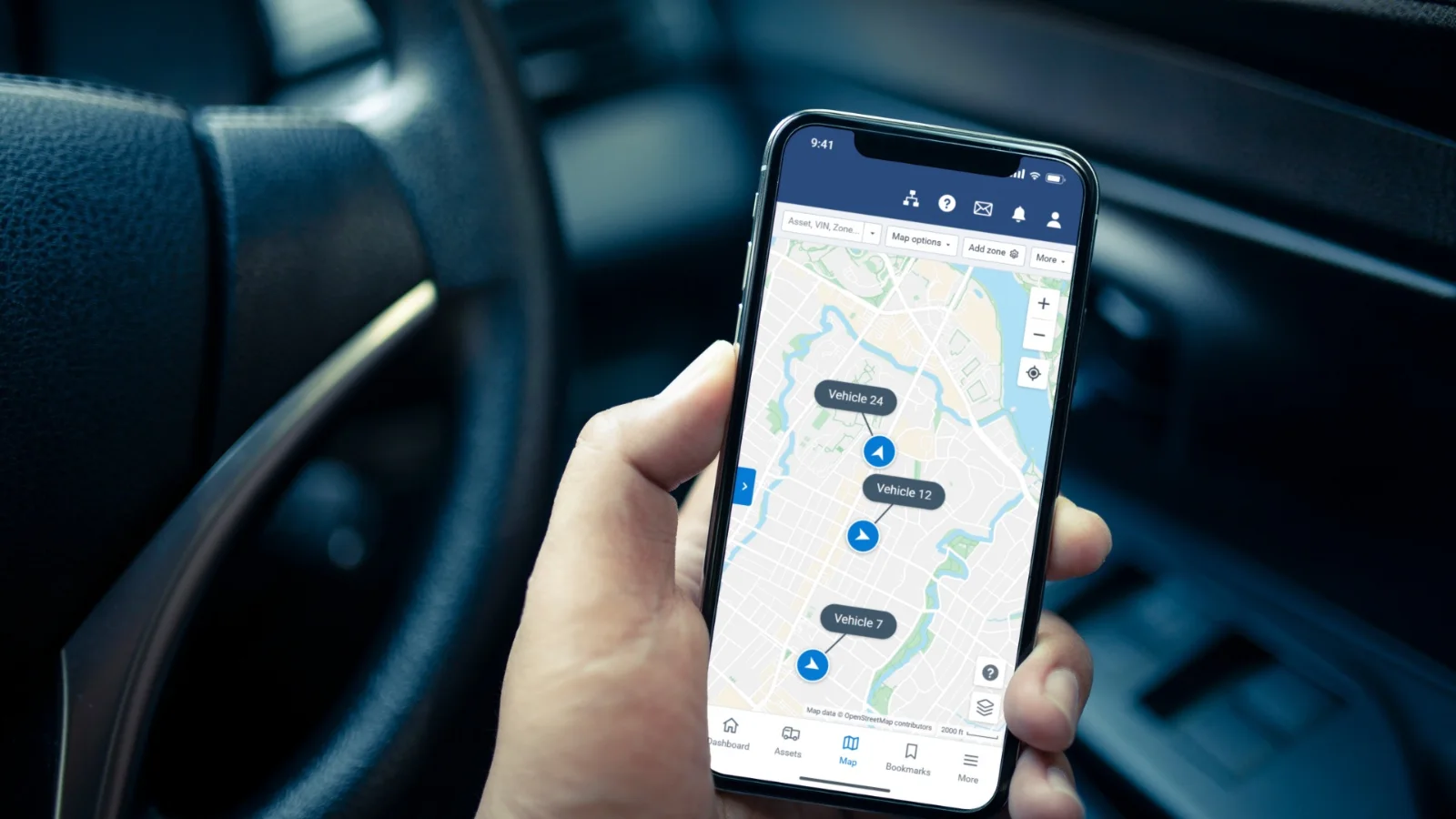
We verify the whole chain is reporting before the vehicle leaves the yard.
Anything you want reported by name. On the GO10, integrated I/O pins report PTO and seat belt states with no add-on box.
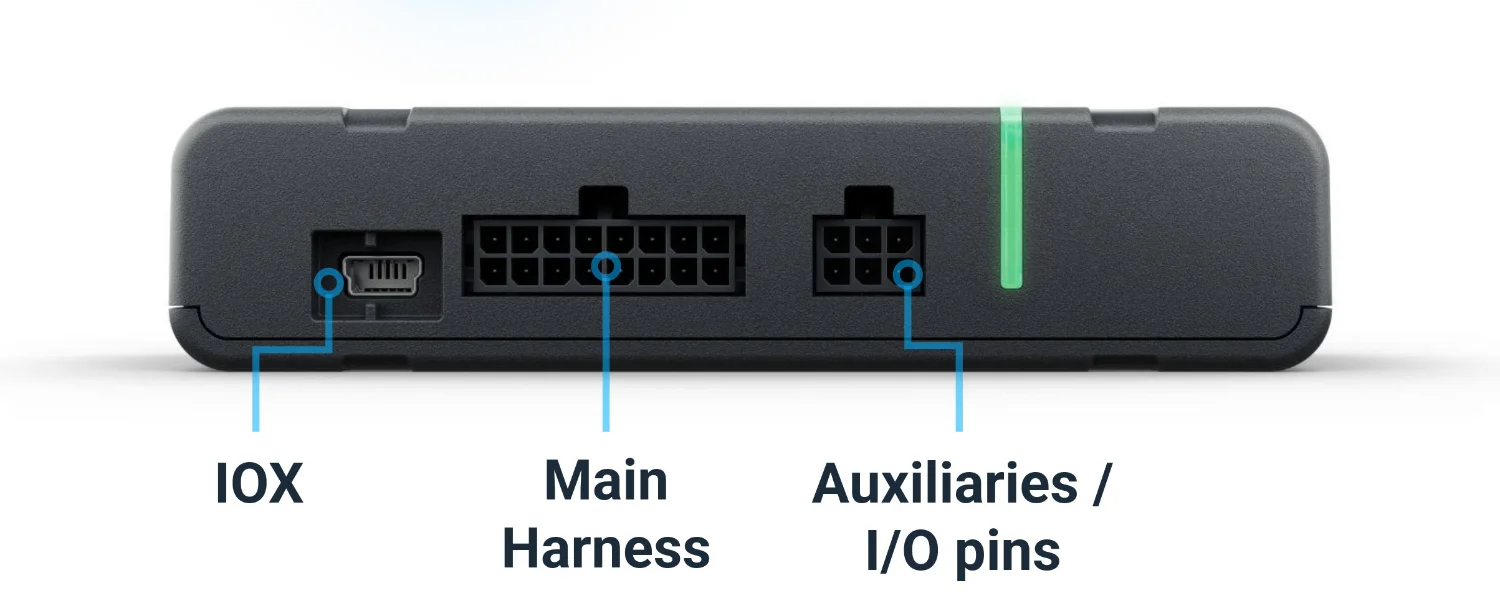
We confirm the right wiring and install path before anything ships.
Connect each input lead to the circuit you want reported.
Click the add-on into the tracker, and we verify the whole chain is reporting.
How to Install Geotab IOX NFC Reader
Video from Geotab's official channel, shown as a general guide. Your add-ons arrive ready to click in, and we verify the whole chain is reporting before the vehicle leaves the yard.
If your setup is different
Stacked add-ons, tight spaces, and add-ons months later are still one click at a time for your own crew.
Your crew: Unplugs the tracker, clicks each add-on into the chain with the camera last, and plugs it back in.
How we help: We verify the whole chain is reporting before the vehicle leaves the yard.
Your crew: Uses an extension cable to put the add-on where it fits, clear of the pedals, on the same chain.
How we help: We confirm the right wiring and install path before anything ships.
Your crew: Mounts it with the bracket and screws in the box, where the driver reaches it and the view stays clear.
How we help: We verify the whole chain is reporting.
Your crew: Unplugs the tracker, clicks the new add-on in, and plugs the tracker back in. No tracker swap.
How we help: We verify the whole chain is reporting.
Your crew: Clicks a satellite add-on into the same chain.
How we help: It keeps a vehicle or GO Rugged machine reporting past cellular, on the same map.
One after another, with the camera last: each add-on chains to the next, and a GO Focus camera sits at the end.
Tap a driver ID card on the reader: it blinks green and the tracker beeps once.
Yes. Satellite, panic buttons, and temperature all plug into GO Rugged, and the data lands on the same map.
No. Its integrated I/O pins report PTO and seat belt states by name, and a GO9 takes a wired-input add-on.
We stay on the line until the device is reporting. New to Geotab: start with a free demo device.